How to replace fields in Microsoft Word with an open-source solution?
Versions used in this example
- DocumentFormat.OpenXml v3.0.0
- .NET 8
The need
In a project, the requirement was to generate .docx or .pdf documents filled with data provided by users through digital forms.
The documents were Word templates.
This made perfect sense: employees were already familiar with Office and could modify document layouts independently from the software.
TL;DR
I used the DocumentFormat.OpenXml library to solve this problem.
If you prefer jumping straight to the solution rather than reading the full tutorial, the source code is available on GitHub here: https://github.com/kjbconseil/sandbox/tree/main/publiposting-word/KJBConseil.WordPubliposting
Paid solutions review
Several options exist.
Paid libraries such as Aspose Words for .NET or Iron Word solve this very well.
They provide mature SDKs with up-to-date support.
However, looking at NuGet download statistics — Aspose vs Iron — the former is far more widely used (≈50× 😯).
Both require paid licenses 💸, which did not fit this project’s constraints.
Open-source options review
Often — though not always — open-source solutions are free.
If the community around a tool is large, many real-world use cases and issues are documented and accessible.
As developers, that’s a blessing 🙌 — especially when learning new frameworks can be painful 😅.
Through research, I found the Open XML SDK.
It does not manipulate Word specifically but rather any document using the Open XML standard — i.e., the Office suite.
Choosing DocumentFormat.OpenXml
I chose the open-source DocumentFormat.OpenXml library.
Beyond the GitHub docs, I also found extensive documentation on Microsoft Learn: https://learn.microsoft.com/en-us/office/open-xml/open-xml-sdk
Why this choice?
- GitHub stars
- active releases
- MIT license
- NuGet stats: https://www.nuget.org/packages/DocumentFormat.OpenXml
Word implementation example
Preparing the template
First, create a Word document and add two fields.
You can do this via Insert → Quick Parts → Field.

Choose DocVariable and give your variable a name.
You can also press CTRL+F9, which inserts field braces at the cursor position.
Use the name NumDossier.
Below is the expected result:

(The end-of-line character is a paragraph mark and irrelevant here.)
The field display differs depending on the creation method, but we’ll handle both 🙃.
Code initialization
Let’s open the document.
Create a .NET 8 console app. The main code will be in Program.cs.
We embed the template as a resource and define an output path.
1
2
3
4
5
6
7
8
9
10
using DocumentFormat.OpenXml.Packaging;
using KJBConseil.WordPubliposting;
using System.Reflection;

string outputPath = Path.Combine(
    Path.GetTempPath(),
    Path.GetRandomFileName() + ".docx");

var myTemplateName = "Template.docx";
string resourceName = "KJBConseil.WordPubliposting." + myTemplateName;
Now open the template with DocumentFormat.OpenXml (install via NuGet):
1
2
3
4
5
6
7
8
9
10
using (var documentFromTemplate = WordprocessingDocument.Open(outputPath, true))
{
    var body = documentFromTemplate.MainDocumentPart?.Document.Body ??
        throw new InvalidOperationException("The body of the XML document is null.");

    documentFromTemplate.MainDocumentPart.Document.Save();
}

Console.WriteLine(outputPath);
Console.ReadKey();
Replacing field values
Now the core logic: find fields and replace them with values.
Create a class to centralize this logic. We’ll pass a dictionary of values.
1
2
3
4
5
6
7
internal static class ReplaceVariableByValues
{
    public static void Execute(Body body, Dictionary<string, string> fieldsToUpdate)
    {
        // implemented below
    }
}
For each field name, search in the document using FieldCode elements. We must support both field creation methods.
1
2
3
4
5
6
7
8
9
10
11
12
foreach (var fieldToUpdate in fieldsToUpdate)
{
    var fieldName = fieldToUpdate.Key;
    var fieldNewValue = fieldToUpdate.Value;

    foreach (var parent in body.Descendants<FieldCode>()
        .Where(fieldCode => fieldCode.Text.Contains($"DOCVARIABLE  {fieldName}") || fieldCode.Text.Contains(fieldName))
        .Select(matchedFieldCode => matchedFieldCode.Parent))
    {
        // replace logic below
    }
}
We remove the existing field code and insert a new Text node with the value. We also detect and remove the opening/closing braces (CTRL+F9 fields).
1
2
3
4
5
6
7
8
9
10
11
12
13
14
15
if (parent is null)
    throw new InvalidOperationException($"Parent of '{fieldName}' field code is null.");

parent.RemoveAllChildren<FieldCode>();
parent.AppendChild(new Text(fieldNewValue));

var before = parent.ElementsBefore().FirstOrDefault(e => e.Descendants<FieldChar>().Any());
var opening = before?.GetFirstChild<FieldChar>();
if (opening?.FieldCharType?.Value == FieldCharValues.Begin)
    before!.Remove();

var after = parent.ElementsAfter().FirstOrDefault(e => e.Descendants<FieldChar>().Any());
var closing = after?.GetFirstChild<FieldChar>();
if (closing?.FieldCharType?.Value == FieldCharValues.End)
    after!.Remove();
Final class
1
2
3
4
5
6
7
8
9
10
11
12
13
14
15
16
17
18
19
20
21
22
23
24
25
26
27
28
29
30
31
32
internal static class ReplaceVariableByValues
{
    public static void Execute(Body body, Dictionary<string, string> fieldsToUpdate)
    {
        foreach (var fieldToUpdate in fieldsToUpdate)
        {
            var fieldName = fieldToUpdate.Key;
            var fieldNewValue = fieldToUpdate.Value;

            foreach (var parent in body.Descendants<FieldCode>()
                .Where(fieldCode => fieldCode.Text.Contains($"DOCVARIABLE  {fieldName}") || fieldCode.Text.Contains(fieldName))
                .Select(matchedFieldCode => matchedFieldCode.Parent))
            {
                if (parent is null)
                    throw new InvalidOperationException($"Parent of '{fieldName}' field code is null.");

                parent.RemoveAllChildren<FieldCode>();
                parent.AppendChild(new Text(fieldNewValue));

                var before = parent.ElementsBefore().FirstOrDefault(e => e.Descendants<FieldChar>().Any());
                var opening = before?.GetFirstChild<FieldChar>();
                if (opening?.FieldCharType?.Value == FieldCharValues.Begin)
                    before!.Remove();

                var after = parent.ElementsAfter().FirstOrDefault(e => e.Descendants<FieldChar>().Any());
                var closing = after?.GetFirstChild<FieldChar>();
                if (closing?.FieldCharType?.Value == FieldCharValues.End)
                    after!.Remove();
            }
        }
    }
}
Final wiring in Program.cs
1
2
3
4
5
6
7
8
9
10
11
12
13
14
using (var documentFromTemplate = WordprocessingDocument.Open(outputPath, true))
{
    var body = documentFromTemplate.MainDocumentPart!.Document.Body!;

    Dictionary<string, string> fieldsWithValues = new()
    {
        { "NumDossier", "0012" },
        { "Name", "Harry Potter" },
    };

    ReplaceVariableByValues.Execute(body, fieldsWithValues);

    documentFromTemplate.MainDocumentPart.Document.Save();
}
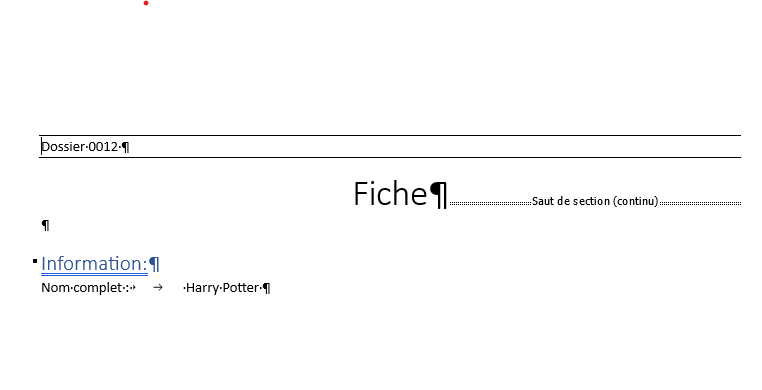
Run the app, open the generated file, and you’ll see replaced values.
Conclusion
We implemented a basic open-source solution to replace dynamic values in a Word document.
Under the hood, a Word document is a ZIP containing XML files. You can rename .docx to .zip and inspect its structure.
This helps understand the XML nodes traversed in the Execute method.
Full code: https://github.com/kjbconseil/sandbox/tree/main/publiposting-word/KJBConseil.WordPubliposting
Have I already mentioned my favorite development rule?
you SHOULD apply the famous boy scout rule: you SHOULD leave the code cleaner than you found it.